
Event captions, step by step.
Choose whether you are organizing or attending.
Updated 14 November 2026
Organizer video · 87 s
English
Listener video · 55 s
English
The group around your event
Your event has a group in Espero where everyone takes part in their own language.
Watch the video: a group around your event (62 s)
Before
The invitation, the schedule and the conversation are in the event’s group. Each member reads and writes in their own language.
During
Listeners read or listen in their own language and can ask in the group. The organizer can show a question on the projector without the sender’s name. Listening is free for listeners.
After
The conversation continues in the group, each in their own language. The event’s text stays readable for 30 days from the start of the broadcast, and the organizer can download it.
The conversation needs a free Espero account, and joining follows the group’s joining rules.
Picture numbers match the steps. The pictured QR codes are examples.
All organizer instructions
Organizer
Start with the free 7-hour trial. Create an event and prepare the broadcast at your own pace. Phone Computer.
Prepare
Before the event
Step 1: Create an event
Open Translate → Event captions and press Create an event. Enter the name and start time. The place is optional. A new group takes the event name. You can choose Change name or Add to an existing group. Press Create an event. The event page shows Event created. Invite listeners opens the link, QR code and poster. Prepare the broadcast opens the console. The first time, the console starts with the Before the broadcast checklist: Test the sound, Invite listeners, Add songs and special words and Start when it is time.
If you see Where shall we start?, choose Enter details yourself.
If you see Start your free 7-hour trial, press it to start your trial. You can also use purchased hours or a valid access code.
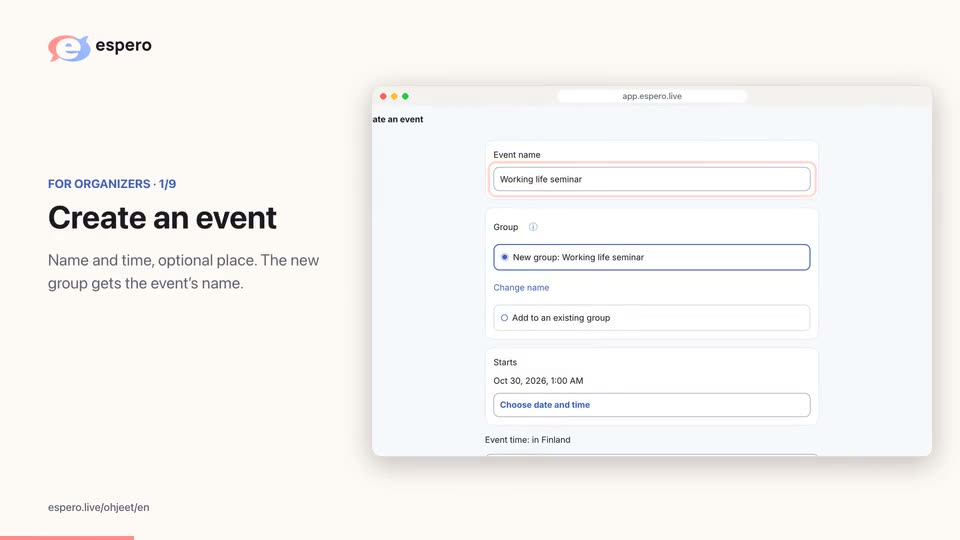
 Create an eventCreate an eventEspero demo
Espero demo
Today at 18:00Step 2: Choose languages
In the console, under Spoken languages, choose the main spoken language. Add up to two other spoken languages with Add a spoken language . Under Caption languages, choose up to four languages for your monitoring and the poster . The Listeners can add languages switch lets listeners add their own language . Your package may limit the language count: gift hours allow up to three languages in total. Languages added by listeners use the organizer’s package. Captions in the spoken language are included. Each translation language and each listening language costs €2.50/h with an annual subscription, €3.00/h monthly or €3.30/h one-off, plus VAT. Captions in the spoken language alone cost one language.
Good to know. When speech changes language, a confidently recognized foreign-language row is translated into the main language.
Interpreted event
If an interpreter repeats the speech in another language, add the interpreter’s language as a spoken language (Add a spoken language) and turn on An interpreter repeats the speech. Check which language is the speaker’s and which is the interpreter’s. The speaker and the interpreter can use the same microphone or mixer. Every listener reads each thought once: readers of the speaker’s language get the speaker’s words, readers of the interpreter’s language get the interpreter’s words, and everyone else gets a translation of the speaker. During the broadcast, press This is the interpreter next to a row the interpreter spoke in the Interpreter card, so Espero learns to recognize the interpreter’s voice.
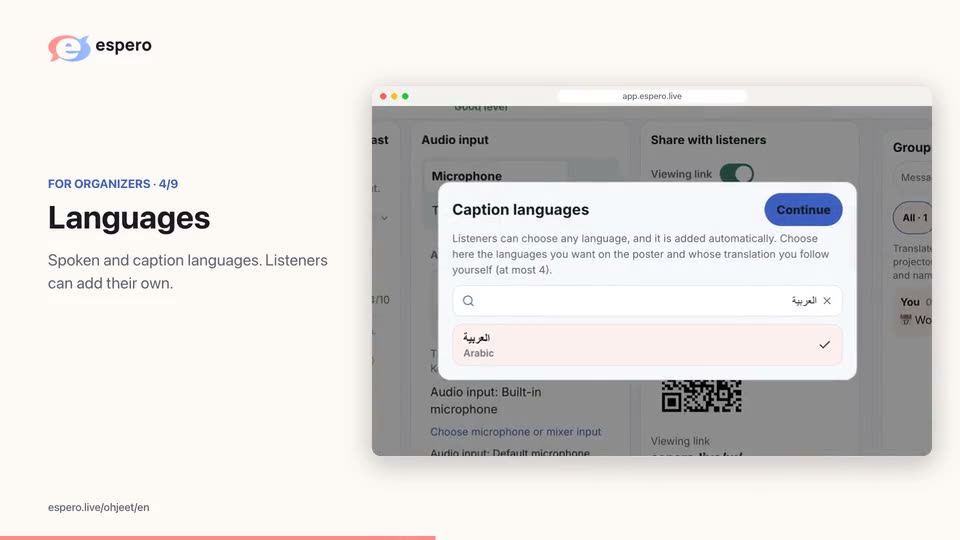 Espero demo
What is being captioned
Step 3: Test the audio
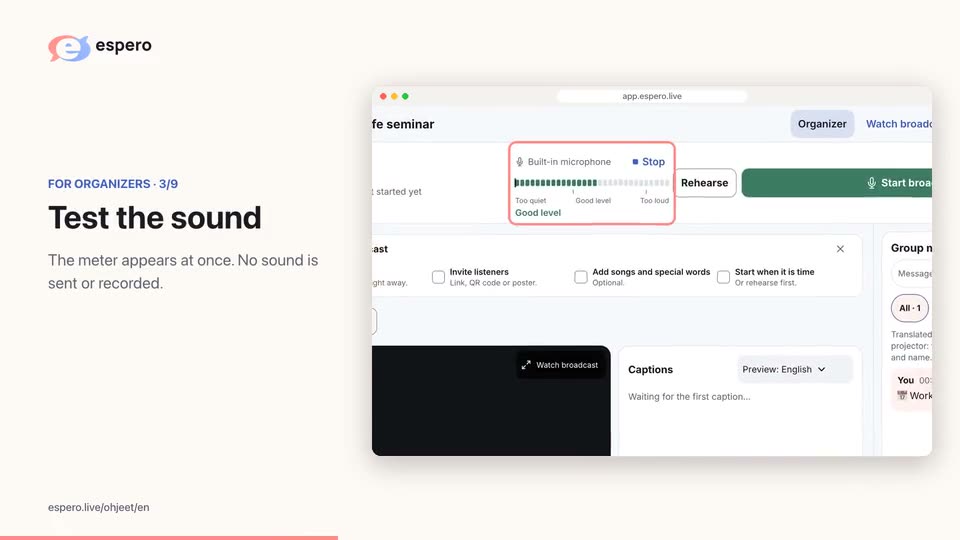
Under Audio input in the console, choose the sound source and the right audio device . In the Before the broadcast checklist, press Test the sound and speak. Aim for Good level. The meter sends nothing to listeners.
Before the broadcast, you can also open the meter with Show microphone level. The level is shown only on this device. No audio is sent or saved.
Keep the microphone near the speaker. Choose the sound source: This device, Mixer (USB) or Dante.
Audio equipment
PhoneKeep the microphone near the speaker or connect the mixer’s speech output through a compatible USB audio device.
ComputerChoose This device, Mixer (USB) or Dante. Dante needs routing by a sound technician. A supported browser also offers This computer’s sound.
Step 4: Add songs and special words
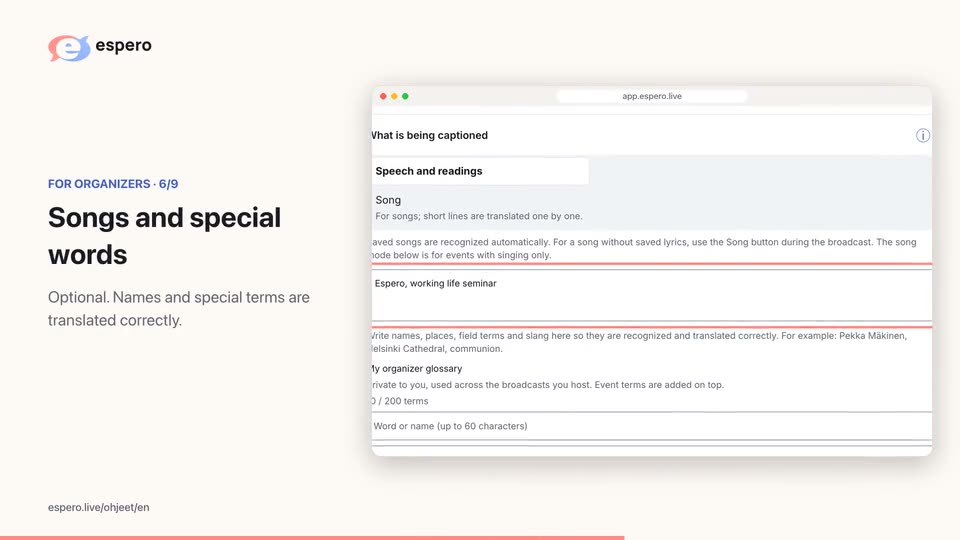
Open Advanced settings in the console. Enter names and special terms in Names and special terms, separated by commas (up to 30). Open the Songs and liturgy card. Paste the words into the text field or press Choose from library. You can also import words with Add photos or Add PDF. Press Save the song lyrics.
Word and PowerPoint files work too: press Add Word or PowerPoint file. Typed text comes in as it is, and the words in pictures are read as from photos.
Song library
- Open Advanced settings and enter the names and special terms that will be spoken in Names and special terms, separated by commas (up to 30).
- Open Songs and liturgy. Paste the words into the text field, press Choose from library, or import them with Add photos or Add PDF. Press Save the song lyrics.
- Save to library keeps the songs in your own song library (up to 200 songs), and Choose from library brings them into your next event.
- The library belongs to your account: only you see it, and it is the same in all your groups.
- Imported text goes into the text field for you to check.
- Start each song title line with #. Start the title line of a text read together, such as the Lord’s Prayer, with ##.
- Saved songs and read-together texts are recognized automatically from their words during the broadcast.
- Only organizers can see the words.
- You can add names and special terms for speech-only events too. If there is no singing or shared reading, skip Songs and liturgy.
 Audio input
Step 5: Invite listeners and rehearse
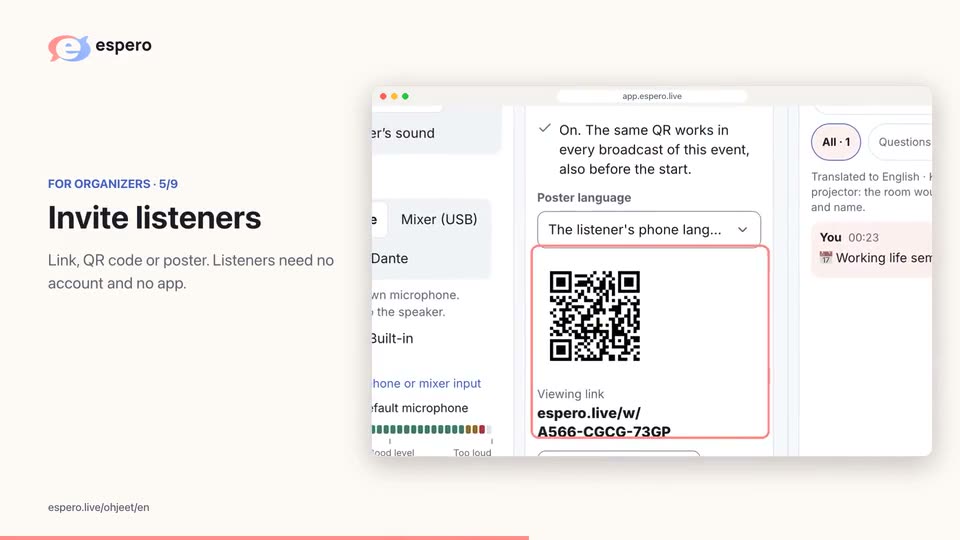
Press Invite listeners on the event page. The same card is available in the console. On a phone, open Share → Share with listeners.
Viewing link is on by default for a new event. You can switch it off.
Choose The listener's phone language (automatic) for the poster so everyone sees captions in their phone’s language; the poster shows the event’s languages. You can also choose a broadcast language or another language.
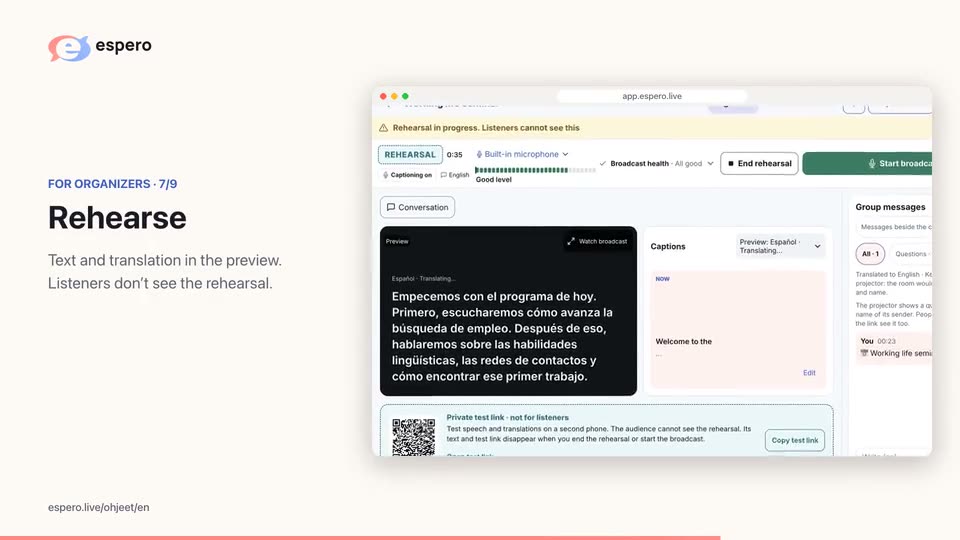
Press Copy viewing link to copy the link. Share link opens the share menu on a supported device or browser. Press Print the QR poster to print the poster. On a phone, the card also has Share the event's QR code. Press Rehearse in the console, speak a few sentences and check the text and translation in the preview. The rehearsal is hidden from listeners. Its text and test link are deleted when you end the rehearsal or start the broadcast. Open the rehearsal’s Private test link · not for listeners on another phone to see the listener view.
Good to know: the QR code and viewing link are ready as soon as the event is created. You can print the poster and promote the event in advance. Add songs and speech terms later. The code stays the same.
 Espero demo
Share with listeners
Poster language
Espero demoThe rehearsal is hidden from listeners and its text is deleted. Do it once before your first broadcast.
Welcome to our event. Espero helps everyone understand and participate in their own language.
During the broadcast
Start with step 6. Use steps 7–10 as needed.
Step 6: Start the broadcast
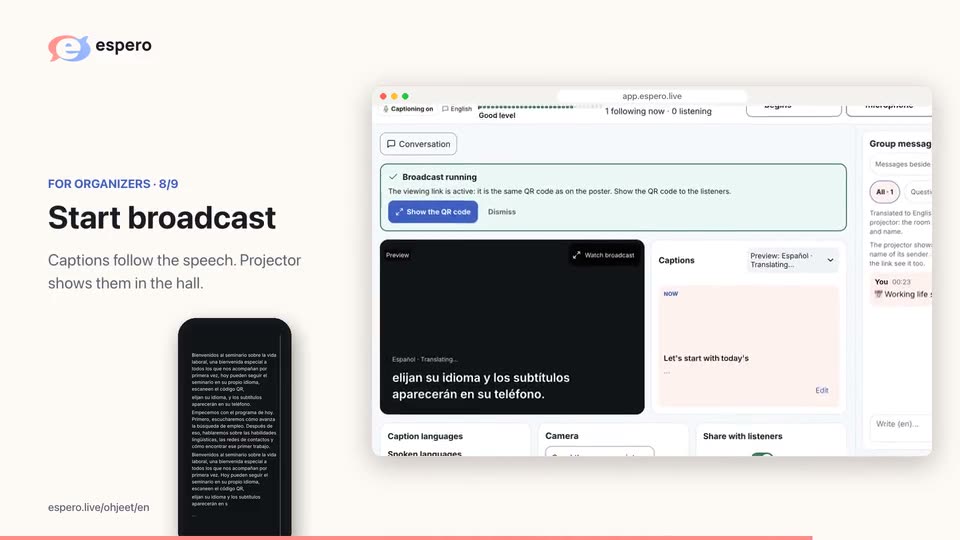
When it is time, press Start broadcast . Espero asks for confirmation if you start more than half an hour before the event. Captions fill in as speech arrives. Broadcast health reports audio and translation status. Projector opens the large caption view. Video is optional: paste the YouTube video or live stream link in the console’s Advanced settings and press Save video if the button appears. Audio reaches Espero through the microphone or mixer.
You can also show listeners the camera picture: during the broadcast, press Camera in the console and then Send the camera picture. Listeners see the picture about a second later, and speech still goes through the microphone. Use the camera through Espero: the phone’s own camera app can interrupt the microphone. Up to 100 listeners can watch the camera at once, and captions always work for everyone. For a larger audience, add a YouTube link as well.
ComputerOn a computer, Simplified view enlarges captions and moves other cards aside.
 Before the broadcast
Welcome to our event. Espero helps everyone understand and participate in their own language.
Step 7: Move between screens
Time is used while the microphone is on, but after two minutes without speech the meter pauses and resumes when speech starts. A paused microphone uses no time. If your balance runs out during a broadcast and you have bought hours before, the broadcast continues for up to one hour, and the extra time is deducted from your next purchase. The microphone keeps running when you open other screens. Pause it with Pause microphone.
You can switch devices during the broadcast: open the organizer view on the other device with the same account and press Resume broadcast. The broadcast moves to the new device, and listeners continue with the same QR code and link. If you used the camera, start it again on the new device.
Move between screens
If another app takes the microphone, you will see a notice.
Step 8: Reply to messages
In Group messages, you can approve join requests and reply .
PhoneThe Conversation shortcut opens the group chat.
ComputerEnter sends a reply; Shift+Enter starts a new line.
 Group messages
Aino requests to join the group
Can I read the captions after the event?
Step 9: Show a question on the projector
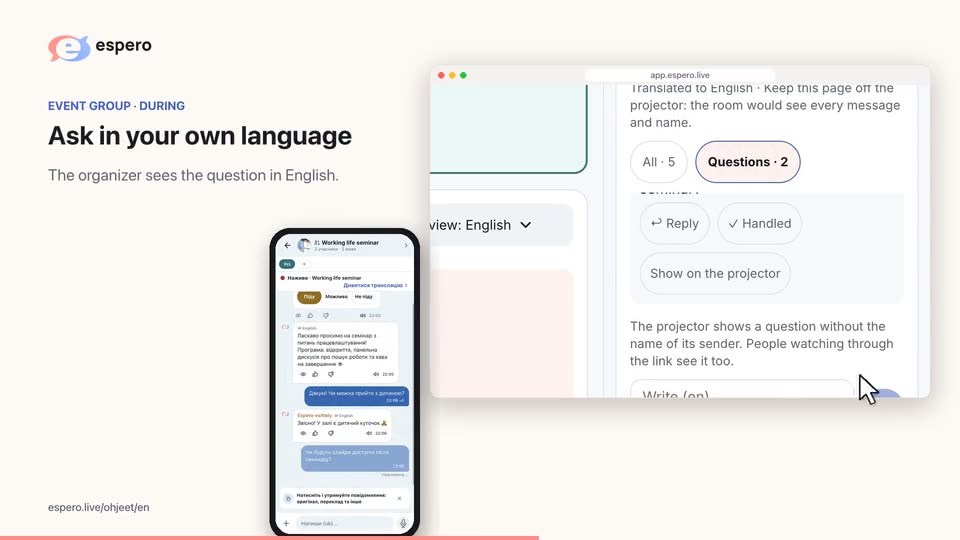
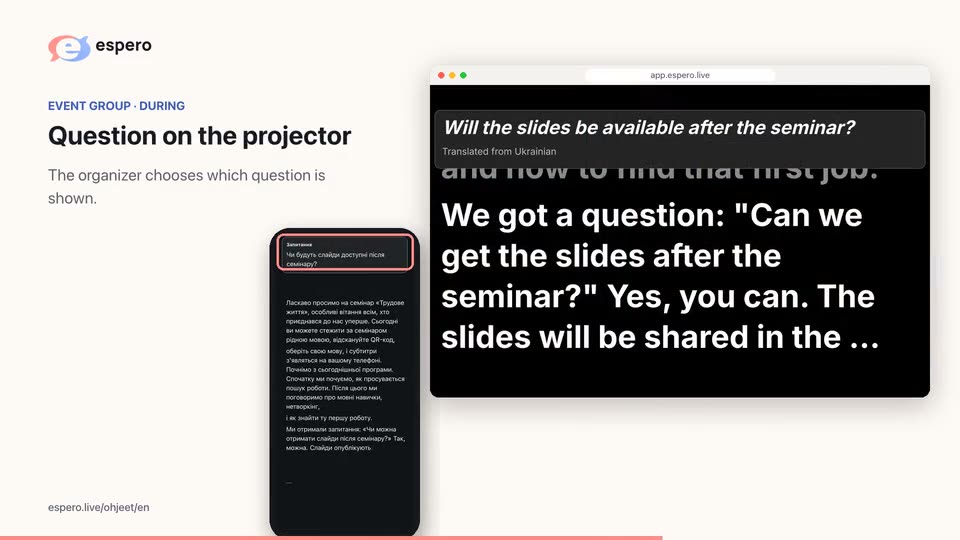
Questions → Show on the projector displays one question on the room screen without its sender’s name . Remove it from the same panel .
Projector viewing link. The console’s Projector opens a large caption view on this device. On a separate projector computer, open the listener viewing link , not the organizer view.
 Group messages
Can I read the captions after the event?
Can I read the captions after the event?
Welcome to our event. Espero helps everyone understand and participate in their own language.
Read the speech as captions or listen to the translation with headphones. Choose how you follow along.
A shared language begins with understanding. It is a pleasure to be here together.
Group messagesCan I read the captions after the event?
Can I read the captions after the event?
Welcome to our event. Espero helps everyone understand and participate in their own language.
Read the speech as captions or listen to the translation with headphones. Choose how you follow along.
A shared language begins with understanding. It is a pleasure to be here together.
Step 10: Songs during the broadcast
Song is only needed when the words of a song have not been saved: saved songs and read-together texts are recognized automatically from their words, and the console follows the song’s verse. On a computer, the button reads The singing begins. Press it when the song starts, and when the song ends, press The singing has ended . Sung rows are marked with ♫ and are not read aloud by default. Keep the microphone on during the song. For a singing-only event, choose Advanced settings → What is being captioned → Song. To show a verse, use Paste a verse or prepared text and press Show verse to everyone. Before the broadcast, prepare songs in the Songs and liturgy card.
Espero demoSinging in progress
Sung lines are marked with ♫ and are not read aloud.
Afterwards
When the event ends
Step 11: End and check feedback
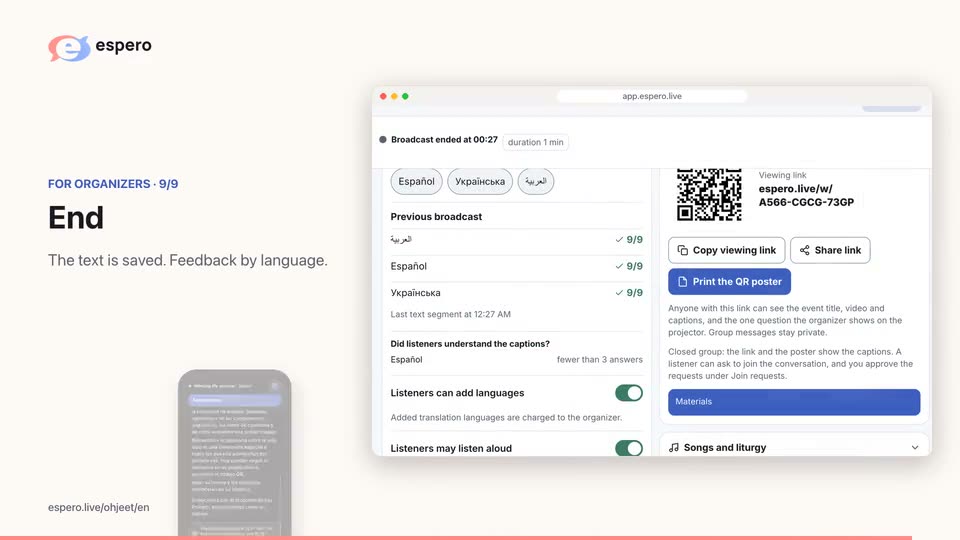
For a break, tap Pause microphone, then Resume broadcast when you return. When the event ends, tap End (End broadcast on a computer) and confirm with End broadcast . Listeners see the last day to read the text. If listener feedback is enabled, they are asked Did you understand the captions? See feedback by language below Caption languages in the organizer view.
 Espero demo
End the broadcast?
Listeners will no longer receive live captions. An ended broadcast cannot be resumed, but you can start a new one in the same event.
A shared language begins with understanding. It is a pleasure to be here together.
The broadcast has ended. The text is available for 30 days from its start, unless deleted earlier. The last day to read it is shown here.
Step 12: After the broadcast
Correct text
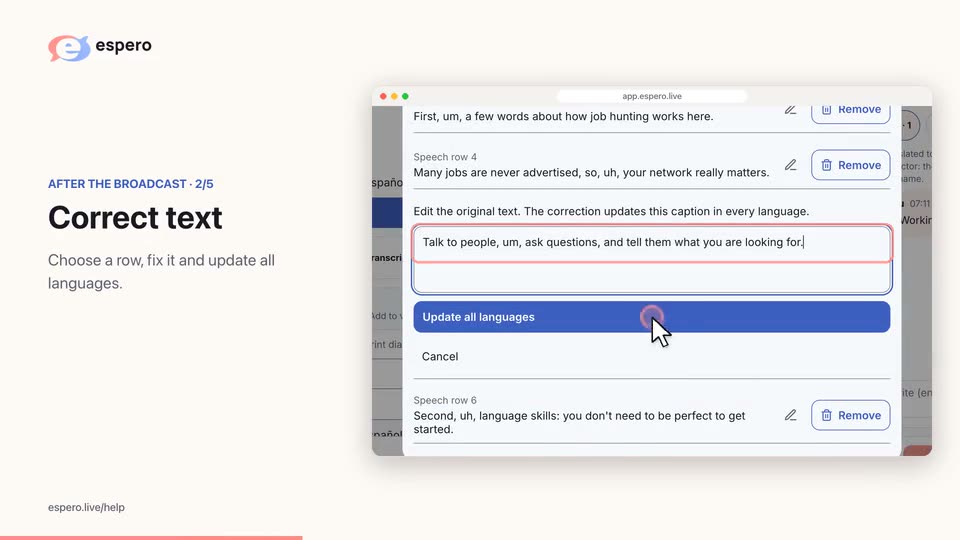
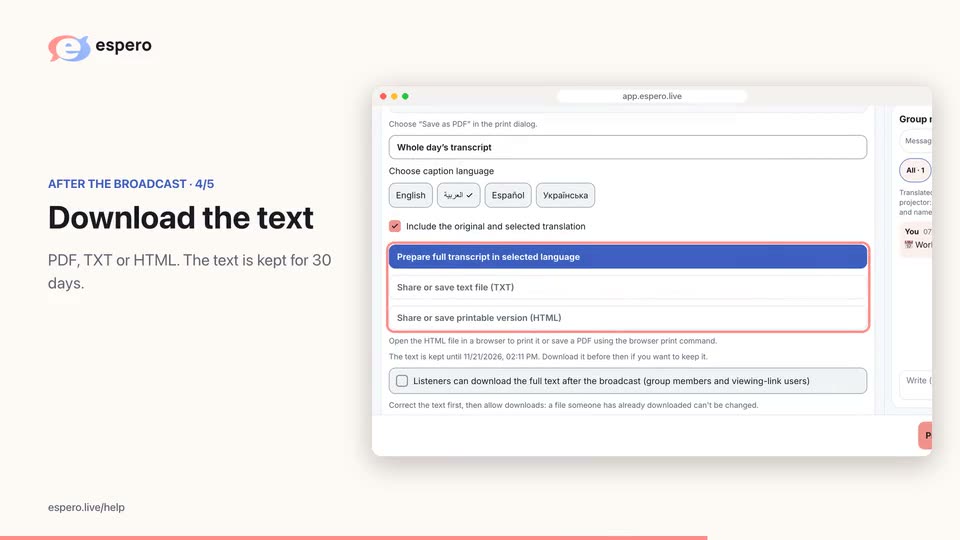
From the event or group chat, open Transcript, PDF and corrections → Correct text. Edit a row and save; translations update. Add to vocabulary helps with often misrecognized words. Select the transcript language and Download PDF, or Share printable text on a phone. For TXT and HTML exports, tap Prepare full transcript in selected language. Download before the displayed retention deadline. Allow listener downloads with Listeners can download the full text after the broadcast (group members and viewing-link users).
The transcript is available for 30 days from the start of the broadcast. Choose the text language and press Download PDF; if your phone shows Share printable text, use that and save the file as a PDF through the print command.
Other file types
Choose the caption language and press Prepare full transcript in selected language. When it is ready, choose Share or save text file (TXT) for a text file or Share or save printable version (HTML) for a printable version. Choose the text language and press Download PDF; if your phone shows Share printable text, use that and save the file as a PDF through the print command. Open the HTML file in a browser to print it or save a PDF using the browser print command.
 Correct text
All listener instructions
Listener
Read without an account. Listen without an account, with the organizer’s permission and in a supported language. The organizer pays; the listener’s personal Espero minutes are not used.
Step 1: Scan the QR
Scan the event QR to open the viewing link . Reading needs no sign-in.
App or browser. If the event does not open in the app, update Espero or continue in your browser.
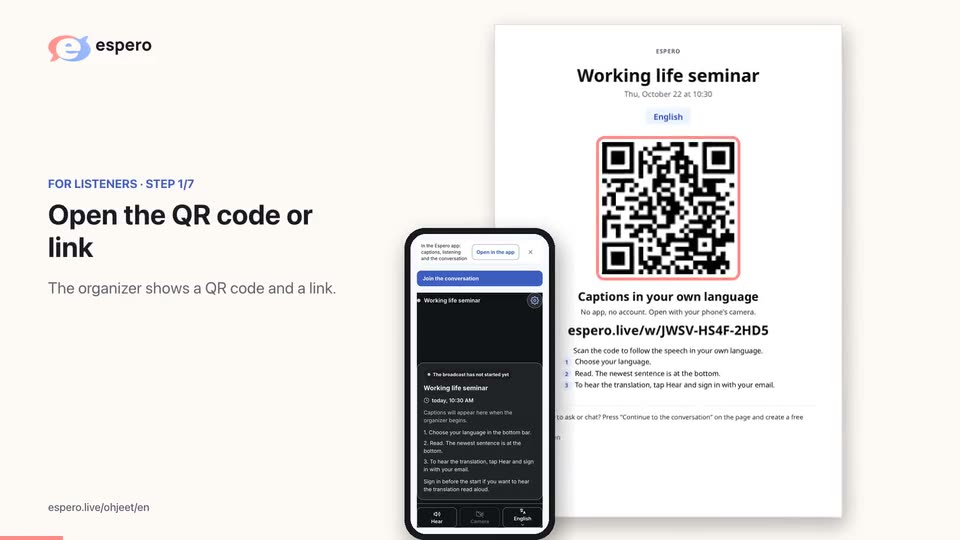
Espero demo
Today at 18:00Captions appear here when the organizer starts.
Without an account. The text shows on this page.Listen without an account, with the organizer’s permission and in a supported language. The organizer pays; the listener’s personal Espero minutes are not used.Step 2: Choose a language
Choose your caption language in the bottom bar . More options open from the gear at the top . Scroll to earlier rows or use Latest text to return.
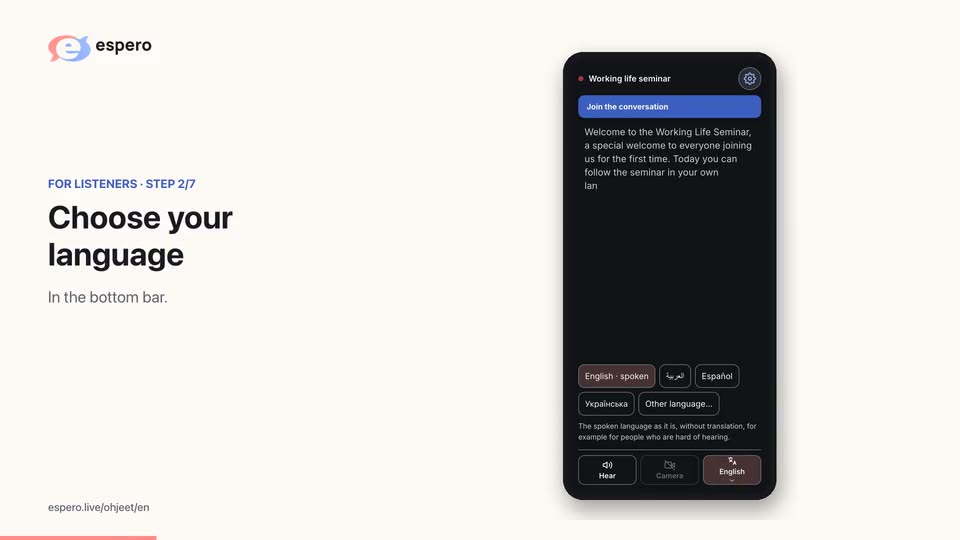
Espero demo
Today at 18:00Captions appear here when the organizer starts.
Without an account. The text shows on this page.Listen without an account, with the organizer’s permission and in a supported language. The organizer pays; the listener’s personal Espero minutes are not used.More
Continue to the conversationReadWithout an account. The text shows on this page.HearListen without an account, with the organizer’s permission and in a supported language. The organizer pays; the listener’s personal Espero minutes are not used.DiscussJoin the group to take part in the discussion.Welcome to our event. Espero helps everyone understand and participate in their own language.
Read the speech as captions or listen to the translation with headphones. Choose how you follow along.
A shared language begins with understanding. It is a pleasure to be here together.
Step 3: Hear the translation
Press Hear and put on headphones. No account is needed. Listening is free for you. Jump to now takes you to the latest words.
Hear the translation
If Hear is available, press it. Use headphones. Listen without an account, with the organizer’s permission and in a supported language. The organizer pays; the listener’s personal Espero minutes are not used. Jump to now returns listening to the latest words.
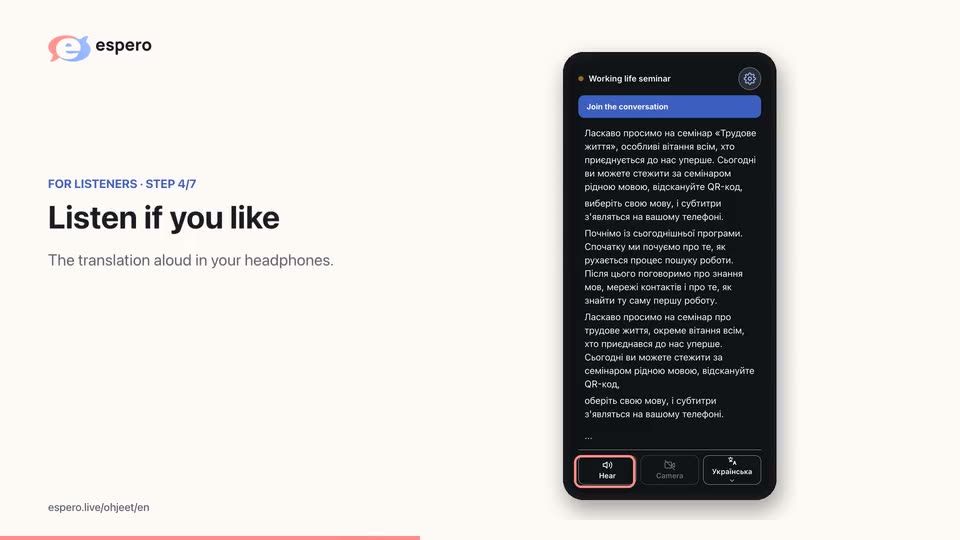
Welcome to our event. Espero helps everyone understand and participate in their own language.
Read the speech as captions or listen to the translation with headphones. Choose how you follow along.
A shared language begins with understanding. It is a pleasure to be here together.
Step 4: Ask in the conversation
Choose Join the conversation beside the captions and sign in if needed. Group members see Open conversation. Write a question in your own language ; in this example, the organizer’s Finnish reply appears in English . The organizer can show the question on the projector without your name .
If your app still has the More menu, open it from the top gear or bottom bar and choose Continue to the conversation. Sign in if needed. Joining the group may require an admin’s approval.
Broadcast ended
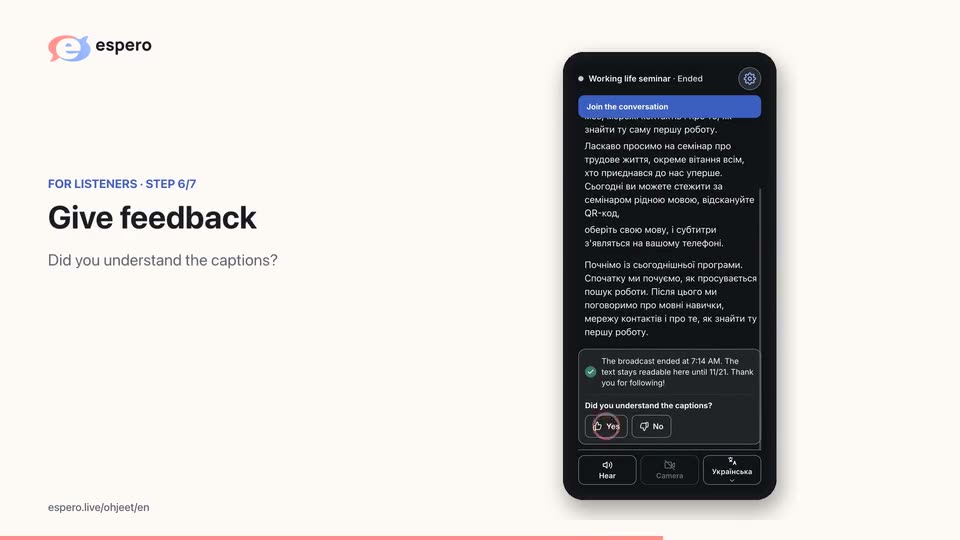
After the broadcast, if Espero asks Did you understand the captions?, answer Yes or No. You can describe what went wrong or leave a note, then press Send note.
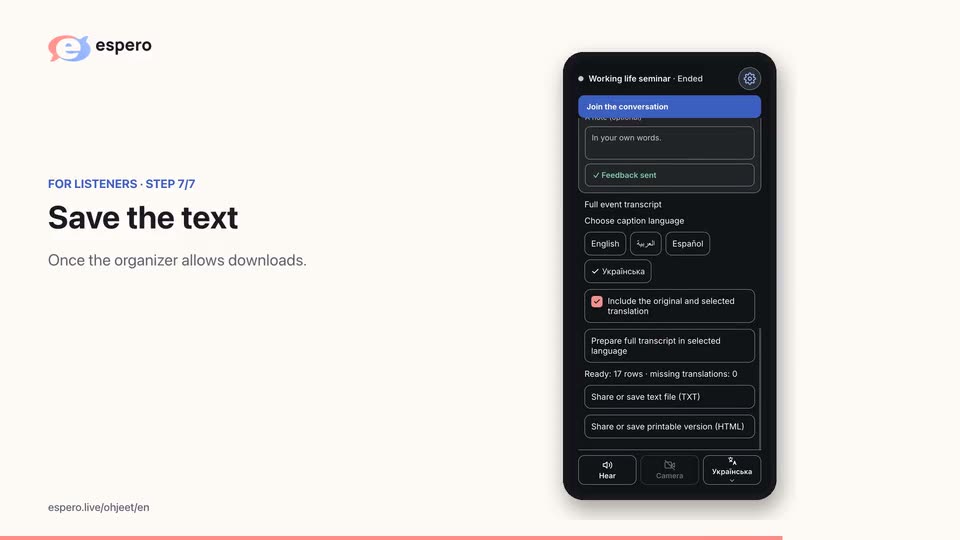
After the broadcast, the full text can be downloaded from the same link if the organizer allows it.
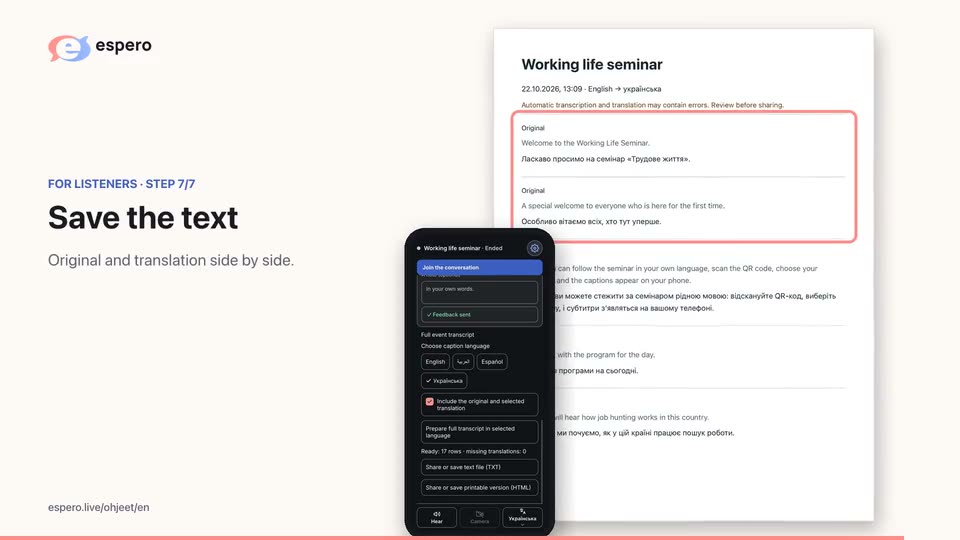
Choose the caption language and press Prepare full transcript in selected language. When it is ready, choose Share or save text file (TXT) for a text file or Share or save printable version (HTML) for a printable version.
Open the HTML file in a browser to print it or save a PDF using the browser print command.
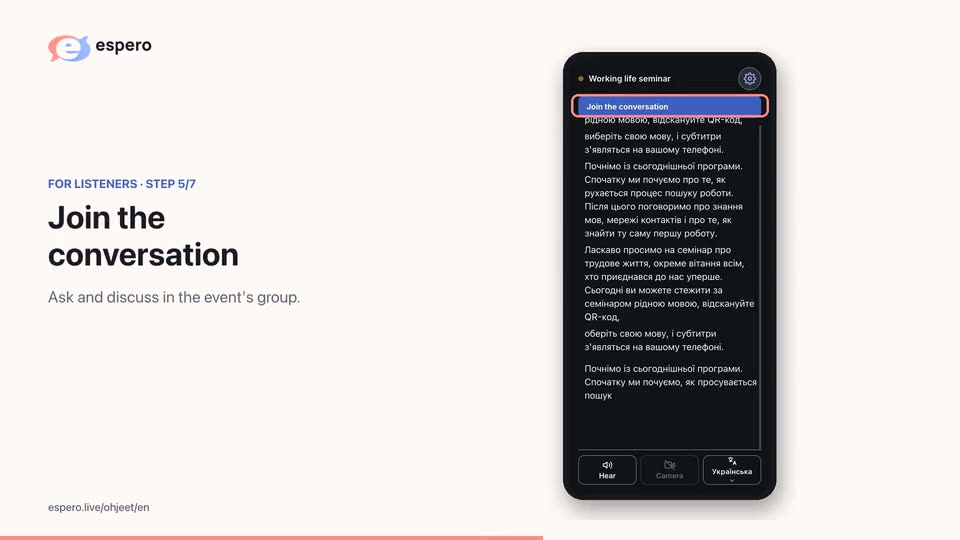
Welcome to our event. Espero helps everyone understand and participate in their own language.
Read the speech as captions or listen to the translation with headphones. Choose how you follow along.
A shared language begins with understanding. It is a pleasure to be here together.
Espero demo
1 memberYou can follow the captions while waiting for approval.
Espero demoEspero demo
Watch broadcastEspero demoCan I read the captions after the event?
Yes. The text is available for 30 days from the start of the broadcast, unless deleted earlier.
Can I read the captions after the event?
Welcome to our event. Espero helps everyone understand and participate in their own language.
Read the speech as captions or listen to the translation with headphones. Choose how you follow along.
A shared language begins with understanding. It is a pleasure to be here together.
The broadcast has ended. The text is available for 30 days from its start, unless deleted earlier. The last day to read it is shown here.